2. Introduction to Python, Sage, and Jupyter Notebooks#
We will use some computer tools to learn and deal with cryptography in this course. Our main software will be Sage. On the other hand, Sage is built on top of Python (and other math software), with which it shares its syntax. In fact, you can use virtually any Python tool within Sage.
But before we start our discussion of Sage and Python, we need to talk about Jupyter Notebooks.
2.1. Jupyter Notebooks#
We will use Jupyter Notebooks in this course for our classes, computations, and homework. In fact, what you are reading now either is a Jupyter notebook or was created with one! If the latter, we recommend you download the corresponding notebook so that you can edit it and test it. Moreover, the homework from this book is done with Jupyter notebooks, so it is important to familiarize yourself with it.
Important
From now on we will continue assuming you are reading the Jupyter notebook. If you are reading the associated generated chapter, you can use it as a reference, but cannot edit it. Just remember that actions mentioned below, like running or editing cells, refer to the Jupyter notebook.
Jupyter notebooks allow us to have formatted text, math formulas, images, and code together in a single document.
2.1.1. Cells#
A notebook is made of cells, which can be a text/Markdown cell, like this one, if you are reading this within Jupyter, or a code cell, like the one below:
print("Hello world!")
Hello world!
Code cells: Code cells can run code. The language of the code depends on the kernel used, with Python being the default and most used. This notebook, though, is meant to be used with a Sage kernel. To run the code cell, click on it and press Shift + Enter/Return. You can edit a code cell simply by clicking inside it.
Text cells: Text cells are formatted with Markdown, which provides a quick syntax to format text. Markdown Guide is one of the many possible references to get started with Markdown.
To edit a text cell, you need to double click on it. (You will then see the markdown code.) When done, you run it, like a code cell, with Shift + Enter/Return, to format the text.
Note that the notebooks associated to this book use MyST, which is an extension of Markdown, providing extra formatting options. To read these properly within Jupyter, you might need to install jupyterlab_myst. You can install it in Python with:
pip install jupyterlab_myst
In Sage you can install it with the following command (run in a terminal, like Windows’ Power Shell or Mac Terminal):
sage --pip install jupyterlab_myst
Switching cell types: By default new cells are code cells. To convert to a text cell, you can click on the Code drop down box on the of the notebook and select Markdown.
Alternatively, you can click on the left of cell and press m (lower case M). It will convert it to a text/markdown cell. Pressing y will convert back to a code cell.
Edit and Command modes: The current (or selected) cell has a blue mark on its left. And a cell has two modes: Edit Mode, and Command Mode. In edit mode, well, you can edit the cell. You should see the cursor inside the cell and you can start typing in it.
For a code cell, you just need to click inside it to enter edit mode. For a text cell, you need to double click on it to enter edit mode.
Clicking on the left of a cell will make it enter command mode. But, if it is a text cell, it will not format the markdown code. So, you can run it first, and then click on cell itself to select it.
Keyboard shortcuts: If you plan to use Jupyter notebooks a lot, I strongly recommend you learn some keyboard shortcuts. Chetography has a nice shortcut cheatsheet.
For instance, in command mode, to add a cell above the current one, press a. To add a cell below it, press b.
You can press x, c, and v to cut, copy, and paste a cell, respectively. You can also drag and drop cells (clicking an holding on the left of the cell).
2.1.2. LaTeX#
You can also enter mathematical expressions using LaTeX. With a quick search I’ve found this: Introduction to LaTeX for Jupyter notebooks, which seems to introduce the basics.
Here is an example of LaTeX (from calculus): we say that if \(f(x)\) is differentiable at \(x=a\), if the limit
exists. In the case, the value of the limit is called the derivative of \(f(x)\) at \(x=a\), and usually is denoted by \(f'(a)\).
2.2. Basic Python/Sage#
This notebook is running Sage, meaning that I’ve selected the Sage kernel to run the code cells by default. But, unless I explicitly say otherwise, what comes next applies to both Sage and Python. Again, Sage is built on top of Python, so it is not unlike running Python and loading many math libraries at the start. Sage provides extra functions and data types that makes it easier to do math out of the box.
Therefore, this introduction serves as an introduction to both Sage and Python!
2.3. Simple Computations#
We can use Python/Sage to perform simple mathematical computations. Its syntax should be mostly familiar. For example, to compute the product \(3 \cdot 4\), we simply type (in a code cell):
3 * 4
12
As it is usual, the asterisk * is used for product.
We can perform more involved computations. For instance, to compute
we do:
3 + (2 / 3 - 5 * 7)
-94/3
Warning
Sage versus Python
Note that this computation, in Sage, gives us a fraction and not a decimal (usually called a float in Python), as in Python.
I will run the same computation using (real/plain) Python by starting the cell with %%python:
%%python

print(3 + (2 / 3 - 5 * 7))
-31.333333333333336
Although I needed the print above to see the result (unlike the previous code cell), this cell is running the same computation in Python, and the result is a decimal.
Sage’s behavior is, as expected, better for mathematics, as we get an exact results and can deal with rational numbers (i.e., fraction of integers).
Note that Sage always gives you a reduced fraction, meaning that the numerator and denominator have no common factor.
4 / 6
2/3
If we want the decimal in Sage, we have a few options. We can make one of the numbers a float/decimal:
4.0 / 6
0.666666666666667
We cam use the method or function numerical_approximation:
numerical_approx(4 / 6)
0.666666666666667
(4 / 6).numerical_approx()
0.666666666666667
Note that the last two have options allow you specify the number of digits in the numerical approximation with the optional argument digits=:
numerical_approx(4 / 6, digits=30)
0.666666666666666666666666666667
(4 / 6).numerical_approx(digits=30)
0.666666666666666666666666666667
Note that n is a shortcut for numerical_approx:
n(4 / 6, digits=30)
0.666666666666666666666666666667
(4 / 6).n(digits=30)
0.666666666666666666666666666667
The problem for the function n(...) is that we often use n as a variable name, which overwrites the function name! In that case, we can use numerical_approx(...) or the method .n.
Warning
Sage versus Python
For powers Python uses ** instead of the more commonly used ^, which is used by Sage. (Sage also accepts ** for powers!) In Python is used for the logical operator XOR, or “exclusive or”. So, if you use ^ instead of ** Python will not give an error, but it won’t compute what you were expecting!
3 ^ 4
81
%%python
print(3 ^ 4)
7
3 ** 4
81
%%python
print(3 ** 4)
81
As in any language, there is a specific syntax we must follow. For instance:
2.3.1. Common Operators#
Here are some of the most basic operations:
Expression Type |
Operator |
Example |
Value |
|---|---|---|---|
Addition |
|
|
|
Subtraction |
|
|
|
Multiplication |
|
|
|
Division (Python) |
|
|
|
Division (Sage) |
|
|
|
Integer Division |
|
|
|
Remainder |
|
|
|
Exponentiation (Python) |
|
|
|
Exponentiation (Sage) |
|
|
|
Python/Sage expressions obey the same familiar rules of precedence as in algebra: multiplication and division occur before addition and subtraction. Parentheses can be used to group together smaller expressions within a larger expression.
So, the expression:
1 + 2 * 3 * 4 * 5 / 6^3 + 7 + 8 - 9 + 10
158/9
represents
while
1 + 2 * (3 * 4 * 5 / 6)^3 + 7 + 8 - 9 + 10
2017
represents
Note
Python would give 2017.0 as the answer.
%%python
print(1 + 2 * (3 * 4 * 5 / 6) ** 3 + 7 + 8 - 9 + 10)
2017.0
2.3.2. Some Builtin Functions#
Sage comes with most functions needed in mathematics (without having to import other modules, like in Python).
For instance, abs (also present in Python) is the absolute value function (i.e, \(| \, \cdot \, |\)):
abs(-12)
12
Rounding to the nearest integer (also available in Python):
round(5 - 1.3)
4
Maximum function (also available in Python):
max(2, 2 + 3, 4)
5
In this last example, the max function is called on three arguments: 2, 5, and 4. The value of each expression within parentheses is passed to the function, and the function returns the final value of the full call expression. The max function can take any number of arguments and returns the maximum.
All the above functions were present in (plain) Python. But Sage has many that are not, for instance, log functions:
log(2)
log(2)
Warning
Sage versus Python
Here again we see a difference between Sage and Python. Sage will not automatically evaluate functions when they do not yield “simple” numerical results, but only simplify when possible. This makes sure that we do not lose precision.
We can always the the decimal value/approximation with the numerical_approx function:
numerical_approx(log(2))
0.693147180559945
log(2).numerical_approx()
0.693147180559945
2.3.3. Getting Help#
To get help on a particular function, you can type its name followed by a question mark ?:
log?
or, you can use help:
help(log)
Help on function log in module sage.misc.functional:

log(*args, **kwds)
    Return the logarithm of the first argument to the base of
    the second argument which if missing defaults to ``e``.

    It calls the ``log`` method of the first argument when computing
    the logarithm, thus allowing the use of logarithm on any object
    containing a ``log`` method. In other words, ``log`` works
    on more than just real numbers.

    .. NOTE::

        In Magma, the order of arguments is reversed from in Sage,
        i.e., the base is given first. We use the opposite ordering, so
        the base can be viewed as an optional second argument.

    EXAMPLES::

        sage: log(e^2)                                                                  # needs sage.symbolic
        2

    To change the base of the logarithm, add a second parameter::

        sage: log(1000,10)
        3

    The synonym ``ln`` can only take one argument::

        sage: # needs sage.symbolic
        sage: ln(RDF(10))
        2.302585092994046
        sage: ln(2.718)
        0.999896315728952
        sage: ln(2.0)
        0.693147180559945
        sage: ln(float(-1))
        3.141592653589793j

        sage: ln(complex(-1))
        3.141592653589793j

    You can use
    :class:`RDF<sage.rings.real_double.RealDoubleField_class>`,
    :class:`~sage.rings.real_mpfr.RealField` or ``n`` to get a
    numerical real approximation::

        sage: log(1024, 2)
        10
        sage: RDF(log(1024, 2))
        10.0

        sage: # needs sage.symbolic
        sage: log(10, 4)
        1/2*log(10)/log(2)
        sage: RDF(log(10, 4))
        1.6609640474436813
        sage: log(10, 2)
        log(10)/log(2)
        sage: n(log(10, 2))
        3.32192809488736
        sage: log(10, e)
        log(10)
        sage: n(log(10, e))
        2.30258509299405

    The log function works for negative numbers, complex
    numbers, and symbolic numbers too, picking the branch
    with angle between `-\pi` and `\pi`::

        sage: log(-1+0*I)                                                               # needs sage.symbolic
        I*pi
        sage: log(CC(-1))                                                               # needs sage.rings.real_mpfr
        3.14159265358979*I
        sage: log(-1.0)                                                                 # needs sage.symbolic
        3.14159265358979*I

    Small integer powers are factored out immediately::

        sage: # needs sage.symbolic
        sage: log(4)
        2*log(2)
        sage: log(1000000000)
        9*log(10)
        sage: log(8) - 3*log(2)
        0
        sage: bool(log(8) == 3*log(2))
        True

    The ``hold`` parameter can be used to prevent automatic evaluation::

        sage: # needs sage.symbolic
        sage: log(-1, hold=True)
        log(-1)
        sage: log(-1)
        I*pi
        sage: I.log(hold=True)
        log(I)
        sage: I.log(hold=True).simplify()
        1/2*I*pi

    For input zero, the following behavior occurs::

        sage: log(0)                                                                    # needs sage.symbolic
        -Infinity
        sage: log(CC(0))                                                                # needs sage.rings.real_mpfr
        -infinity
        sage: log(0.0)                                                                  # needs sage.symbolic
        -infinity

    The log function also works in finite fields as long as the
    argument lies in the multiplicative group generated by the base::

        sage: # needs sage.libs.pari
        sage: F = GF(13); g = F.multiplicative_generator(); g
        2
        sage: a = F(8)
        sage: log(a, g); g^log(a, g)
        3
        8
        sage: log(a, 3)
        Traceback (most recent call last):
        ...
        ValueError: no logarithm of 8 found to base 3 modulo 13
        sage: log(F(9), 3)
        2

    The log function also works for `p`-adics (see documentation for
    `p`-adics for more information)::

        sage: R = Zp(5); R                                                              # needs sage.rings.padics
        5-adic Ring with capped relative precision 20
        sage: a = R(16); a                                                              # needs sage.rings.padics
        1 + 3*5 + O(5^20)
        sage: log(a)                                                                    # needs sage.rings.padics
        3*5 + 3*5^2 + 3*5^4 + 3*5^5 + 3*5^6 + 4*5^7 + 2*5^8 + 5^9 +
        5^11 + 2*5^12 + 5^13 + 3*5^15 + 2*5^16 + 4*5^17 + 3*5^18 +
        3*5^19 + O(5^20)


    TESTS:

    Check if :issue:`10136` is fixed::

        sage: ln(x).operator() is ln                                                    # needs sage.symbolic
        True
        sage: log(x).operator() is ln                                                   # needs sage.symbolic
        True

        sage: log(1000, 10)
        3
        sage: log(3, -1)                                                                # needs sage.symbolic
        -I*log(3)/pi
        sage: log(int(8), 2)                                                            # needs sage.symbolic
        3
        sage: log(8, int(2))
        3
        sage: log(8, 2)
        3
        sage: log(1/8, 2)
        -3
        sage: log(1/8, 1/2)
        3
        sage: log(8, 1/2)
        -3

        sage: log(1000, 10, base=5)
        Traceback (most recent call last):
        ...
        TypeError: log takes at most 2 arguments (3 given)

    Check if :issue:`29164` is fixed::

        sage: log(0, 2)
        -Infinity

    Check if :issue:`37794` is fixed::

        sage: log(int(0), 2)
        -Infinity
        sage: log(int(0), 1/2)
        +Infinity

    Check if sub-issue detailed in :issue:`38971` is fixed::

        sage: log(6, base=0)
        0
        sage: log(e, base=0)
        0
or you can press Shift-TAB with the cursor after the function’s name:
log
<function log at 0x7fab3440ce00>
As the documentation for log shows, the base for this log is e, meaning that log is the natural log. But it also shows that we can use different bases.
So, the natural log of \(16\), i.e., \(\ln(16)\) is given by?:
log(16).numerical_approx()
2.77258872223978
Log base \(2\) of \(16\), i.e., \(\log_2(16)\):
log(16, 2)
4
Note that the result is exact! So, Sage is not using numerical methods to compute the log, it is simplifying it without loss of precision.
We could also have done:
Log base \(4\) of \(16\), i.e, \(\log_4(16)\):
log(16, 4)
2
Besides using ? at then end, help(...), and pressing Shit+TAB, one can see the source code of a function with ??:
is_prime??
2.3.4. Math Constants#
Sage also comes with some constants, like \(\pi\) (set to pi) and \(e\) (set to e):
cos(pi / 2)
0
numerical_approx(pi, digits=100)
3.141592653589793238462643383279502884197169399375105820974944592307816406286208998628034825342117068
log(e)
1
numerical_approx(e, digits=100)
2.718281828459045235360287471352662497757247093699959574966967627724076630353547594571382178525166427
2.4. Variables#
We can store values in variables, so that these can be used later. Here is an example of a computation of a restaurant bill:
subtotal = 30.17
tax_rate = 0.0925
tip_percentage = 0.2

tax = subtotal * tax_rate
tip = (subtotal + tax) * tip_percentage

total = subtotal + tax + tip

round(total, 2)
39.55
Note how the variable names make clear what the code does, and allows us to reused it by changing the values of subtotal, tax_rate, and tip_percentage.
Variable names can only have:
letters (lower and upper case),
numbers, and
the underscore
_.
Moreover, variable names cannot start with a number and should not start with the underscore (unless you are aware of the conventions for such variable names).
You should always name your variables with descriptive names to make your code more readable.
You should also try to avoid variable names already used in Python/Sage, as it would override their builtin values. For instance, names like print, int, abs, round are already used in Python/Sage, so you should not used them.
(If the name appears in a green in a code cell in Jupyter, then it is already taken!)
2.4.1. Tab Completion#
Jupyter Lab has tab completion for code cells. This means that if you are typing a variable name or function name in a code cell and then press the key TAB (on the left of the Q key), it will give you the variables/functions that start with the characters you’ve already typed.
# tax # press TAB
# log # press tab
2.6. String (Text)#
Strings is the name for text blocks in Python (and in most programming languages). To have a text (or string) object in Python, we simply surround it by single quotes ' ' or double quotes " ":
'This is some text.'
'This is some text.'
"This is also some text!"
'This is also some text!'
If we need quotes inside the string, we need to use the other kind to delimit it:
"There's always time to learn something new."
"There's always time to learn something new."
'Descates said: "I think, therefore I am."'
'Descates said: "I think, therefore I am."'
What if we need both kinds of quotes in a string?
We can escape the quote with a \ as in:
"It's well know that Descartes has said: \"I think, therefore I am.\""
'It\'s well know that Descartes has said: "I think, therefore I am."'
'It\'s well know that Descartes has said: "I think, therefore I am."'
'It\'s well know that Descartes has said: "I think, therefore I am."'
Thus, when you repeat the string quote inside of it, put a \ before it.
Note that you can always escape the quotes, even when not necessary. (It will do no harm.) In the example below, there was no need to escape the single quote, as seen above:
"It\'s well know that Descartes has said: \"I think, therefore I am.\""
'It\'s well know that Descartes has said: "I think, therefore I am."'
Another option is to use triple quotes, i.e., to surround the text by either ''' ''' or """ """ (and then there is no need for escaping):
'''It's well know that Descartes has said: "I think, therefore I am."'''
'It\'s well know that Descartes has said: "I think, therefore I am."'
On the other hand, we cannot use """ """ here because our original string ends with a ". If it did not, it would also work. We can simply add a space:
"""It's well know that Descartes has said: "I think, therefore I am." """
'It\'s well know that Descartes has said: "I think, therefore I am." '
Triple quote strings can also contain multiple lines (unlike single quote ones):
"""First line.
Second line.
Third line (after a blank line)."""
'First line.\nSecond line.\n\nThird line (after a blank line).'
The output seems a bit strange (we have \n in place of line breaks — we will talk about it below), but it prints correctly:
multi_line_text = """First line.
Second line.
Third line (after a blank line)."""
print(multi_line_text)
First line.
Second line.
Third line (after a blank line).
2.6.1. Special Characters#
The backslash \ is used to give special characters. (Note that it is not the forward slash / that is used for division!)
Besides producing quotes (as in \' and \"), it can also produce line breaks, as seen above.
For instance:
multi_line_text = "First line.\nSecond line.\n\nThird line (after a blank line)."
print(multi_line_text)
First line.
Second line.
Third line (after a blank line).
We can also use \t for tabs: it gives a “stretchable space” which can be convenient to align text:
aligned_text = "1\tA\n22\tBB\n333\tCCC\n4444\tDDDD"
print(aligned_text)
1 A
22 BB
333 CCC
4444 DDDD
We could also use triple quotes to make it more readable:
aligned_text = """
1 \t A
22 \t BB
333 \t CCC
4444 \t DDDD"""
print(aligned_text)
1 A
22 BB
333 CCC
4444 DDDD
Finally, if we need the backslash in our text, we use \\ (i.e., we also escape it):
backslash_test = "The backslash \\ is used for special characters in Python.\nTo use it in a string, we need double backslashes: \\\\."
print(backslash_test)
The backslash \ is used for special characters in Python.
To use it in a string, we need double backslashes: \\.
2.6.2. f-Strings#
f-strings (or formatted string literals) are helpful when you want to print variables with a string.
For example:
birth_year = 2008
current_year = 2025
print(f"I was born in {birth_year}, so I am {current_year - birth_year} years old.")
I was born in 2008, so I am 17 years old.
So, we need to preface our (single quoted or double quoted) string with f and put our expression inside curly braces { }. It can be a variable (as in birth_year) or an expression.
f-strings also allow us to format the expressions inside braces. (Check the documentation if you want to learn more.)
2.6.3. String Manipulation#
We can concatenate string with +:
name = "Alice"
eye_color = "brown"
name + " has " + eye_color + " eyes."
'Alice has brown eyes.'
Note that we could have use an f-sting in the example above:
f"{name} has {eye_color} eyes."
'Alice has brown eyes.'
We also have methods to help us manipulate strings.
Methods are functions that belong to a particular object type, like strings, integers, and floats. The syntax is object.method(arguments). (We had already seen the method .numerical_approx() above!)
We can convert to upper case with the upper method:
test_string = "abc XYZ 123"
test_string.upper()
'ABC XYZ 123'
Similarly, the method lower converts to lower case:
test_string.lower()
'abc xyz 123'
We can also spit a string into a list of strings (more about lists below) with split:
test_string.split()
['abc', 'XYZ', '123']
By default, it splits on spaces, but you can give a different character as an argument to specify the separator:
"abc-XYZ-123".split("-")
['abc', 'XYZ', '123']
"abaccaaddd".split("a")
['', 'b', 'cc', '', 'ddd']
2.7. Lists#
Lists are (ordered) sequences of Python objects. To create at list, you surround the elements by square brackets [ ] and separate them with commas ,. For example:
list_of_numbers = [5, 7, 3, 2]
list_of_numbers
[5, 7, 3, 2]
But lists can have elements of any type:
mixed_list = [0, 1.2, "some string", [1, 2, 3]]
mixed_list
[0, 1.20000000000000, 'some string', [1, 2, 3]]
We can also have an empty list (to which we can later add elements):
empty_list = []
empty_list
[]
2.7.1. Ranges#
We can also create lists of consecutive numbers using range. For instance, to have a list with elements from 0 to 5 we do:
list(range(6))
[0, 1, 2, 3, 4, 5]
(Technically, range gives an object similar to a list, but not quite the same. Using the function list we convert this object to an actual list. Most often we do not need to convert the object to a list in practice, though.)
Warning
Note then that list(range(n)) gives a list [0, 1, 2, ..., n - 1], so it starts at 0 (and not 1) and ends at n - 1, so n itself is not included! (This is huge pitfall when first learning with Python!)
We can also tell where to start the list (if not at 0), by passing two arguments:
list(range(3, 10))
[3, 4, 5, 6, 7, 8, 9]
In this case the list start at 3, but ends at 9 (and not 10).
We can also pass a third argument, which is the step size:
list(range(4, 20, 3))
[4, 7, 10, 13, 16, 19]
So, we start at exactly the first argument (4 in this case), skip by the third argument (3 in this case), and stop in the last number before the second argument (20 in this case).
Warning
Sage versus Python
Sage uses a more “flexible” data type for integers than pure Python. The range function gives Python integers. If we want to obtain Sage integers, we can use srange (for Sage range) or xsrange.
The former, srange gives a list, so we do not need the list function:
srange(10, 20)
[10, 11, 12, 13, 14, 15, 16, 17, 18, 19]
The latter,xsrange, like range, gives an iterator. (We will discuss iterators when we talk about loops below.)
list(xsrange(10, 20))
[10, 11, 12, 13, 14, 15, 16, 17, 18, 19]
Note the different date types for the elements:
type(list(range(10, 20))[0]) # data type of first element
<class 'int'>
type(srange(10, 20)[0]) # data type of first element
<class 'sage.rings.integer.Integer'>
We should use Sage integers when we want to use those for computations. But we can use Python integers (which take less memory) for simple tasks, like indexing or counting.
2.7.2. Extracting Elements#
First, remember our list_of_numbers and mixed_list:
list_of_numbers
[5, 7, 3, 2]
mixed_list
[0, 1.20000000000000, 'some string', [1, 2, 3]]
We can extract elements from a list by position. But:
Attention
Python/Sage count from 0 and not 1.
So, to extract the first element of list_of_numbers we do:
list_of_numbers[0]
5
To extract the second:
list_of_numbers[1]
7
We can also count from the end using negative indices. So, to extract the last element we use index -1:
mixed_list[-1]
[1, 2, 3]
The element before last:
mixed_list[-2]
'some string'
To extract the 2 from [1, 2, 3] in mixed_list:
mixed_list[3][1]
2
([1, 2, 3] is at index 3 of mixed_list, and 2 is at index 1 of [1, 2, 3].)
2.7.3. Slicing#
We can get sublists from a list using what is called slicing. For instance, let’s start with the list:
list_example = list(range(5, 40, 4))
list_example
[5, 9, 13, 17, 21, 25, 29, 33, 37]
If I want to get a sublist of list_example starting at index 3 and ending at index 6, we do:
list_example[3:7]
[17, 21, 25, 29]
Warning
Note we used 7 instead of 6! Just like with ranges, we stop before the second number.
If we want to start at the beginning, we can use 0 for the first number, or simply omit it altogether:
list_example[0:5] # first 5 elements -- does not include index 5
[5, 9, 13, 17, 21]
list_example[:5] # same as above
[5, 9, 13, 17, 21]
Omitting the second number, we go all the way to the end:
list_example[-3:]
[29, 33, 37]
We can get the length of a list with the function len:
len(list_example)
9
So, although wasteful (and not recommended) we could also do:
list_example[4:len(list_example)] # all elements from index 4 until the end
[21, 25, 29, 33, 37]
Note
Note that the last valid index of the list is len(list_example) - 1, and not len(list_example), since, again, we start counting from 0 and not 1.
We can also give a step size for the third argument, similar to range:
new_list = list(range(31))
new_list
[0,
1,
2,
3,
4,
5,
6,
7,
8,
9,
10,
11,
12,
13,
14,
15,
16,
17,
18,
19,
20,
21,
22,
23,
24,
25,
26,
27,
28,
29,
30]
new_list[4:25:3] # from index 4 to (at most) 24, with step size of 3
[4, 7, 10, 13, 16, 19, 22]
2.7.4. Changing a List#
We can also change elements in a list.
First, recall our list_of_numbers:
list_of_numbers
[5, 7, 3, 2]
If then, for instance, we want to change the element at index 2 in list_of_numbers (originally a 3) to a 10, we can do:
list_of_numbers[2] = 10
list_of_numbers
[5, 7, 10, 2]
We can add an element to the end of a list using the append method. So, to add \(-1\) to the end of list_of_numbers, we can do:
list_of_numbers.append(-1)
list_of_numbers
[5, 7, 10, 2, -1]
Warning
Note that append changes the original list and returns no output!
For instance, note what happens with the following code:
new_list = list_of_numbers.append(100)
new_list
No output? Well, there is nothing saved in new_list, since .append does not give any output. It did change list_of_numbers, though:
list_of_numbers
[5, 7, 10, 2, -1, 100]
We can sort with the sort method:
list_of_numbers.sort()
list_of_numbers
[-1, 2, 5, 7, 10, 100]
(Again, it changes the list and returns no output!)
To sort in reverse order, we can use the optional argument reverse=True:
list_of_numbers.sort(reverse=True)
list_of_numbers
[100, 10, 7, 5, 2, -1]
We can reverse the order of elements with the reverse method. (This method does no sorting at all, it just reverse the whole list in its given order.)
mixed_list
[0, 1.20000000000000, 'some string', [1, 2, 3]]
mixed_list.reverse()
mixed_list
[[1, 2, 3], 'some string', 1.20000000000000, 0]
We can remove elements with the pop method. By default it removes the last element of the list, but you can also pass it the index of the element to removed.
pop changes the original list and returns the element removed!
list_of_numbers
[100, 10, 7, 5, 2, -1]
removed_element = list_of_numbers.pop() # remove last element
removed_element
-1
list_of_numbers # the list was changed!
[100, 10, 7, 5, 2]
removed_element = list_of_numbers.pop(1) # remove element at index 1
removed_element
10
list_of_numbers # again, list has changed!
[100, 7, 5, 2]
2.7.5. Lists and Strings#
One can think of strings as (more or less) lists of characters. (This is not 100% accurate, as we will see, but it is pretty close.)
So, many of the operations we can do with list, we can also do with strings.
For instance, we can use len to find the lenght (or number of characters) of a string:
quote = "I think, therefore I am."
len(quote)
24
We can also extract elements by index:
quote[3] # 4th character
'h'
And, we can slice a string:
quote[2:20:3]
'tn efe'
Conversely, just as we could concatenate strings with +, we can concatenate lists with +:
[1, 2, 3] + [4, 5, 6, 7]
[1, 2, 3, 4, 5, 6, 7]
Note
The crucial difference is that we cannot change a string (like we can change a list).
If, for instance, you try
quote[3] = "X"
you get an error.
Finally, if we have a list of strings, we can join them with the string method join. (It is not a list method.) The string in question is used to separate the strings in the list. For instance:
list_of_strings = ["all", "you", "need", "is", "love"]
" ".join(list_of_strings)
'all you need is love'
"---".join(list_of_strings)
'all---you---need---is---love'
"".join(list_of_strings)
'allyouneedislove'
2.7.6. Multiple Assignments#
When we want to assign multiple variable to elements of a list, we can do it directly with:
a, b, c = [1, 2, 3]
print(f"{a = }") # shortcut for print(f"a = {a}")
print(f"{b = }")
print(f"{c = }")
a = 1
b = 2
c = 3
In fact, we can simply do:
a, b, c = 1, 2, 3
print(f"{a = }")
print(f"{b = }")
print(f"{c = }")
a = 1
b = 2
c = 3
This gives us a neat trick so exchange values between variables. Say I want to swap the values of a and b. Here is the most common way to this. (We need a temporary variable!)
print(f"{a = }")
print(f"{b = }")
print("\nNow, switch!\n")
# perform the switch
old_a = a # store original value of
a = b # set a to the value of b
b = old_a # set b to the original value of a
print(f"{a = }")
print(f"{b = }")
a = 1
b = 2
Now, switch!
a = 2
b = 1
But in Python/Sage, we can simply do:
print(f"{a = }")
print(f"{b = }")
print("\nNow, switch!\n")
# perform the switch
a, b = b, a # values on the *right* are the old/original!
print(f"{a = }")
print(f"{b = }")
a = 2
b = 1
Now, switch!
a = 1
b = 2
2.8. Dictionaries#
Dictionaries are used to store data that can be retrieve from a key, instead of from position. (In principle, a dictionary has no order!) So, to each key (which must be unique) we have an associate value.
You can think of a real dictionary, where you look up definitions for a word. In this example the keys are the words, and the values are the definitions.
In Python’s dictionaries we have the key/value pairs surrounded by curly braces { } and separated by commas ,, and the key/value pairs are separated by a colon :.
For instance, here is a dictionary with the weekdays in French:
french_days = {
"Sunday": "dimanche",
"Monday": "lundi",
"Tuesday": "mardi",
"Wednesday": "mercredi",
"Thursday": "jeudi",
"Friday": "vendredi",
"Saturday": "samedi",
}
french_days
{'Sunday': 'dimanche',
'Monday': 'lundi',
'Tuesday': 'mardi',
'Wednesday': 'mercredi',
'Thursday': 'jeudi',
'Friday': 'vendredi',
'Saturday': 'samedi'}
(Here the keys are the days in English, and to each key the associate value is the corresponding day in French.)
Then, when I want to look up what is Thursday in French, I can do:
french_days["Thursday"]
'jeudi'
As another example, we can have a dictionary that has all the grades (in a list) o students in a course:
grades = {"Alice": [89, 100, 93], "Bob": [78, 83, 80], "Carl": [85, 92, 100]}
grades
{'Alice': [89, 100, 93], 'Bob': [78, 83, 80], 'Carl': [85, 92, 100]}
To see Bob’s grades:
grades["Bob"]
[78, 83, 80]
To get the grade of Carl’s second exam:
grades["Carl"][1] # note index 1 give the second element!
92
2.8.1. Adding/Changing Entries#
We can also add a pair of key/value to a dictionary. For instance, to enter Denise’s grades, we can do:
grades["Denise"] = [98, 93, 100]
grades
{'Alice': [89, 100, 93],
'Bob': [78, 83, 80],
'Carl': [85, 92, 100],
'Denise': [98, 93, 100]}
We can also change the values:
grades["Bob"] = [80, 85, 77]
grades
{'Alice': [89, 100, 93],
'Bob': [80, 85, 77],
'Carl': [85, 92, 100],
'Denise': [98, 93, 100]}
Or, to change a single grade:
grades["Alice"][2] = 95 # make Alice's 3rd grade a 95
grades
{'Alice': [89, 100, 95],
'Bob': [80, 85, 77],
'Carl': [85, 92, 100],
'Denise': [98, 93, 100]}
We can use pop to remove a pair of key/value by passing the corresponding key. It returns the value for the given key and changes the dictionary (by removing the pair):
bobs_grades = grades.pop("Bob")
bobs_grades
[80, 85, 77]
grades
{'Alice': [89, 100, 95], 'Carl': [85, 92, 100], 'Denise': [98, 93, 100]}
2.8.2. Membership#
The keyword in checks if the value is a key:
french_days
{'Sunday': 'dimanche',
'Monday': 'lundi',
'Tuesday': 'mardi',
'Wednesday': 'mercredi',
'Thursday': 'jeudi',
'Friday': 'vendredi',
'Saturday': 'samedi'}
"Monday" in french_days
True
"lundi" in french_days
False
We can test for values with .values.
Warning
Checking for keys is really fast, but for values is pretty slow (relatively speaking).
"lundi" in french_days.values()
True
The key word in also works with lists and strings:
some_list = [1, 2, 3, 4]
1 in some_list, 5 in some_list # should return True, False
(True, False)
some_string = "ABCD"
"BC" in some_string, "c" in some_string # should return True, False
(True, False)
Note that the elements in a substring have to appear in the same exact sequence:
"AC" in some_string
False
2.9. Sets#
Besides lists and dictionaries, we also have sets for collections of elements. Unlike lists, sets have no order. In fact, a set (in math and in Python/Sage) is characterized by its elements, so repetitions of elements make no difference:
So, a trick to remove repetitions in lists is to convert it to set, and then back to a list:
my_list = [1, 1, 2, 2, 2]
my_list
[1, 1, 2, 2, 2]
set(my_list)
{1, 2}
list(set(my_list))
[1, 2]
As in math, sets are delimited by curly braces \(\{ \cdots \}\):
my_set = {1, 2, 3}
my_set
{1, 2, 3}
my_set == {2, 1, 3, 1, 3, 2, 2}
True
Note that Python/Sage also uses curly braces for dictionaries, so it distinguishes between them by the use of :. The only problem is for empty set and dictionary: {} gives an empty dictionary:
type({})
<class 'dict'>
To create an empty set, usually denoted by \(\varnothing\), we use set():
set()
set()
2.9.1. Membership#
As expected, we can see if an element is in a set with the keyword in:
my_set = {1, 2, 3}
1 in my_set
True
5 in my_set
False
Note
Checking if something is in a set is a lot faster then checking if something is in a list! So, whenever we are just keeping track of elements and need to check membership, we should use sets, not lists!
2.9.2. Set Operations#
We have the usual set operations:
set_A = {1, 2, 3, 4}
set_B = {3, 4, 5, 6, 7, 8}
Union (members of both sets), i.e., \(A \cup B\):
set_A.union(set_B)
{1, 2, 3, 4, 5, 6, 7, 8}
set_A | set_B # same as set_A.union(set_B)
{1, 2, 3, 4, 5, 6, 7, 8}
Intersection (common elements), i.e., \(A \cap B\):
set_A.intersection(set_B)
{3, 4}
set_A & set_B # same as set_A.intersection(set_B)
{3, 4}
Difference (elements in the first, but not in the second), i.e., \(A \setminus B\):
set_A.difference(set_B)
{1, 2}
set_A - set_B # same as set_A.difference(set_B)
{1, 2}
We can also check for containment with <, <=, >, >=:
{1, 2} < {1, 2, 3}
True
{1, 2, 3} <= {1, 2, 4}
False
We can also add elements to sets:
set_A.add(100)
Note that, like append for lists, it does not give any output, but changes the original set:
set_A
{1, 2, 3, 4, 100}
We can clear/empty a set with:
set_A.clear()
set_A
set()
2.10. Conditionals#
2.10.1. Booleans#
Python has two reserved names for true and false: True and False.
Attention
Note that True and False must be capitalized for Python/Sage to recognize them as booleans! Using true and false does not work!
For instance:
2 < 3
True
2 > 3
False
2.10.1.1. Boolean Operations#
One can flip their values with not:
not (2 < 3)
False
not (3 < 2)
True
not True
False
not False
True
These can also be combined with and and or:
(2 < 3) and (4 < 5)
True
(2 < 3) and (4 > 5)
False
(2 < 3) or (4 > 5)
True
(2 > 3) or (4 > 5)
False
Warning
Note that or is not exclusive (as usually in common language).
In a restaurant, if an entree comes with “soup or salad”, both is not an option. But in math and computer science, or allows both possibilities being true:
(2 < 3) or (4 < 5)
True
2.10.2. Comparisons#
We have the following comparison operators:
Operator |
Description |
|---|---|
|
Equality (\(=\)) |
|
Different (\(\neq\)) |
|
Less than (\(<\)) |
|
Less than or equal to (\(\leq\)) |
|
Greater than (\(>\)) |
|
Greater than or equal to (\(\geq\)) |
Warning
Note that since we use = to assign values to variables, we need == for comparisons. It’s a common mistake to try to use = in a comparison, so be careful!
Note that we can use
2 < 3 <= 4
as a shortcut for
(2 < 3) and (3 <= 4)
2 < 3 <= 4
True
2 < 5 <= 4
False
2.10.2.1. String Comparisons#
Note that these can also be used with other objects, such as strings:
"alice" == "alice"
True
"alice" == "bob"
False
It’s case sensitive:
"alice" == "Alice"
False
The inequalities follow dictionary order:
"aardvark" < "zebra"
True
"giraffe" < "elephant"
False
"car" < "care"
True
But note that capital letters come earlier than all lower case letters:
"Z" < "a"
True
"aardvark" < "Zebra"
False
Tip
A common method when we don’t care about case in checking for dictionary order, is to use the string method .lower for both strings.
For instance:
string_1 = "aardvark"
string_2 = "Zebra"
string_1 < string_2 # capitalization has effect!
False
string_1.lower() < string_2.lower() # capitalization has no effect!
True
2.10.3. Methods that Return Booleans#
We have functions/methods that return booleans.
For instance, to test if a string is made of lower case letters:
test_string = "abc"
test_string.islower()
True
test_string = "aBc"
test_string.islower()
False
test_string = "abc1"
test_string.islower()
True
Here some other methods for strings:
Method |
Description |
|---|---|
|
Checks if all letters are lower case |
|
Checks if all letters are upper case |
|
Checks if all characters are letters and numbers |
|
Checks if all characters are letters |
|
Checks if all characters are numbers |
2.10.4. Membership#
As shown above, we can test for membership with the keyword in:
2 in [1, 2, 3]
True
5 in [1, 2, 3]
False
1 in [0, [1, 2, 3], 4]
False
[1, 2, 3] in [0, [1, 2, 3], 4]
True
It also work for strings:
"vi" in "evil"
True
"vim" in "evil"
False
Note the the character must appear together:
"abc" in "axbxc"
False
We can also write not in. So
"vim" not in "evil"
is the same as
not ("vim" in "evil")
"vim" not in "evil"
True
2.11. if-Statements#
We can use conditionals to decide what code to run, depending on some condition(s), using if-statements:
water_temp = 110 # in Celsius
if water_temp >= 100:
print("Water will boil.")
Water will boil.
water_temp = 80 # in Celsius
if water_temp >= 100:
print("Water will boil.")
The syntax is:
if <condition>:
<code to run if condition is true>
Note
Note the indentation: all code that is indented will run when the condition is true!
For example:
water_temp = 110 # in Celsius
if water_temp >= 100:
print("Water will boil.")
print("(Temperature above 100.)")
Water will boil.
(Temperature above 100.)
Compare it with:
water_temp = 80 # in Celsius
if water_temp >= 100:
print("Water will boil.")
print("Non-indented code does not depend on the condition!")
Non-indented code does not depend on the condition!
We can add an else statement for code we want to run only when the condition is false:
water_temp = 110 # in Celsius
if water_temp >= 100:
print("Water will boil.")
else:
print("Water will not boil.")
print("This will always be printed.")
Water will boil.
This will always be printed.
water_temp = 80 # in Celsius
if water_temp >= 100:
print("Water will boil.")
else:
print("Water will not boil.")
print("This will always be printed.")
Water will not boil.
This will always be printed.
We can add more conditions with elif, which stands for else if.
For instance, if we want to check if the water will freeze:
water_temp = 110 # in Celsius
if water_temp >= 100:
print("Water will boil.")
elif water_temp <= 0:
print("Water will freeze.")
Water will boil.
water_temp = -5 # in Celsius
if water_temp >= 100:
print("Water will boil.")
elif water_temp <= 0:
print("Water will freeze.")
Water will freeze.
water_temp = 50 # in Celsius
if water_temp >= 100:
print("Water will boil.")
elif water_temp <= 0:
print("Water will freeze.")
Note that
if water_temp >= 100:
print("Water will boil.")
elif water_temp <= 0:
print("Water will freeze.")
is the same as
if water_temp >= 100:
print("Water will boil.")
else:
if water_temp <= 0:
print("Water will freeze.")
but much better to write (and read)! And it would have been much worse if we had more elif’s!
Warning
Also note that if we have overlapping conditions, only the first to be met runs!
For example:
number = 70
if number > 50:
print("First condition met.")
elif number > 30:
print("Second condition met, but not first")
First condition met.
number = 40
if number > 50:
print("First condition met.")
elif number > 30:
print("Second condition met, but not first")
Second condition met, but not first
number = 20
if number > 50:
print("First condition met.")
elif number > 30:
print("Second condition met, but not first")
We can add an else at the end, which will run when all conditions above it (from the if and all elif’s) are false:
water_temp = 110 # in Celsius
if water_temp >= 100:
print("Water will boil.")
elif water_temp <= 0:
print("Water will freeze.")
else:
print("Water will neither boil, nor freeze.")
Water will boil.
water_temp = -5 # in Celsius
if water_temp >= 100:
print("Water will boil.")
elif water_temp <= 0:
print("Water will freeze.")
else:
print("Water will neither boil, nor freeze.")
Water will freeze.
water_temp = 40 # in Celsius
if water_temp >= 100:
print("Water will boil.")
elif water_temp <= 0:
print("Water will freeze.")
else:
print("Water will neither boil, nor freeze.")
Water will neither boil, nor freeze.
We can have as many elif’s as we need:
water_temp = 110 # in Celsius
if water_temp >= 100:
print("Water will boil.")
elif water_temp >= 90:
print("Water is close to boiling!")
elif 0 < water_temp <= 10:
print("Water is close to freezing!")
elif water_temp <= 0:
print("Water will freeze.")
else:
print("Water will neither boil, nor freeze, nor it is close to either.")
Water will boil.
water_temp = 90 # in Celsius
if water_temp >= 100:
print("Water will boil.")
elif water_temp >= 90:
print("Water is close to boiling!")
elif 0 < water_temp <= 10:
print("Water is close to freezing!")
elif water_temp <= 0:
print("Water will freeze.")
else:
print("Water will neither boil, nor freeze, nor it is close to either.")
Water is close to boiling!
water_temp = 40 # in Celsius
if water_temp >= 100:
print("Water will boil.")
elif water_temp >= 90:
print("Water is close to boiling!")
elif 0 < water_temp <= 10:
print("Water is close to freezing!")
elif water_temp <= 0:
print("Water will freeze.")
else:
print("Water will neither boil, nor freeze, nor it is close to either.")
Water will neither boil, nor freeze, nor it is close to either.
water_temp = 3 # in Celsius
if water_temp >= 100:
print("Water will boil.")
elif water_temp >= 90:
print("Water is close to boiling!")
elif 0 < water_temp <= 10:
print("Water is close to freezing!")
elif water_temp <= 0:
print("Water will freeze.")
else:
print("Water will neither boil, nor freeze, nor it is close to either.")
Water is close to freezing!
water_temp = -5 # in Celsius
if water_temp >= 100:
print("Water will boil.")
elif water_temp >= 90:
print("Water is close to boiling!")
elif 0 < water_temp <= 10:
print("Water is close to freezing!")
elif water_temp <= 0:
print("Water will freeze.")
else:
print("Water will neither boil, nor freeze, nor it is close to either.")
Water will freeze.
Note that we could also have used instead
if water_temp >= 100:
print("Water will boil.")
elif water_temp >= 90:
print("Water is close to boiling!")
elif water_temp <= 0:
print("Water will freeze.")
elif water_temp <= 10:
print("Water is close to freezing!")
else:
print("Water will neither boil, nor freeze, nor it is close to either.")
but not
if water_temp >= 100:
print("Water will boil.")
elif water_temp >= 90:
print("Water is close to boiling!")
elif water_temp <= 10:
print("Water is close to freezing!")
elif water_temp <= 0:
print("Water will freeze.")
else:
print("Water will neither boil, nor freeze, nor it is close to either.")
water_temp = -5 # should say it is freezing!
if water_temp >= 100:
print("Water will boil.")
elif water_temp >= 90:
print("Water is close to boiling!")
elif water_temp <= 10:
print("Water is close to freezing!")
elif water_temp <=0:
print("Water will freeze.")
else:
print("Water will neither boil, nor freeze, nor it is close to either.")
Water is close to freezing!
2.12. for Loops#
We can use for-loops for repeating tasks.
Let’s show its use with an example.
2.12.1. Loops with range#
To print Beetlejuice three times we can do:
for i in range(3):
print("Beetlejuice")
Beetlejuice
Beetlejuice
Beetlejuice
The 3 in range(3) is the number of repetitions, and the indented block below the for line is the code to be repeated. The i is the loop variable, but it is not used in this example. (We will see examples when we do use it soon, though.)
Here range(3) can be thought as the list [0, 1, 2] (as seen above), and in each of the three times that the loop runs, the loop variable, i in this case, receives one of the values in this list in order.
Let’s illustrate this with another example:
for i in range(3):
print(f"The value of i is {i}") # print the value of i
The value of i is 0
The value of i is 1
The value of i is 2
So, the code above is equivalent to running:
# first iteration
i = 0
print(f"The value of i is {i}")
# second iteration
i = 1
print(f"The value of i is {i}")
# third iteration
i = 2
print(f"The value of i is {i}")
The value of i is 0
The value of i is 1
The value of i is 2
Here the range function becomes quite useful (and we should not surround it by list!). For instance, if we want to add all even numbers, between 4 and 200 (both inclusive), we could do:
total = 0 # start with 0 as total
for i in range(2, 201, 2): # note the 201 instead of 200!
total = total + i # replace total by its current value plus the value of i
print(total) # print the result
10100
Hint
It’s worth observing that total += i is a shortcut (and more efficient than) total = total + i.
So we could have done:
total = 0 # start with 0 as total
for i in range(2, 201, 2): # note the 201 instead of 200!
total += i # replace total by its current value plus the value of i
print(total) # print the result
10100
Let’s now create a list with the first \(10\) perfect squares:
squares = [] # start with an empty list
for i in range(10): # i = 0, 1, 2, ... 9
squares.append(i^2) # add i^2 to the end of squares
squares
[0, 1, 4, 9, 16, 25, 36, 49, 64, 81]
2.12.2. Loops with Lists#
One can use any list instead of just range. For instance:
languages = ["Python", "Java", "C", "Rust", "Julia"]
for language in languages:
print(f"{language} is a programming language.")
Python is a programming language.
Java is a programming language.
C is a programming language.
Rust is a programming language.
Julia is a programming language.
The code above is equivalent to
language = "Python"
print(f"{language} is a programming language.")
language = "Java"
print(f"{language} is a programming language.")
language = "C"
print(f"{language} is a programming language.")
language = "Rust"
print(f"{language} is a programming language.")
language = "Julia"
print(f"{language} is a programming language.")
Python is a programming language.
Java is a programming language.
C is a programming language.
Rust is a programming language.
Julia is a programming language.
2.12.3. Loops with Dictionaries#
We can also loop over dictionaries. In this case the loop variable receives the keys of the dictionary:
french_days
{'Sunday': 'dimanche',
'Monday': 'lundi',
'Tuesday': 'mardi',
'Wednesday': 'mercredi',
'Thursday': 'jeudi',
'Friday': 'vendredi',
'Saturday': 'samedi'}
for day in french_days:
print(f"{day} in French is {french_days[day]}.")
Sunday in French is dimanche.
Monday in French is lundi.
Tuesday in French is mardi.
Wednesday in French is mercredi.
Thursday in French is jeudi.
Friday in French is vendredi.
Saturday in French is samedi.
We could also have use french_days.items() which give both the key and value!
for day, french_day in french_days.items():
print(f"{day} in French is {french_day}.")
Sunday in French is dimanche.
Monday in French is lundi.
Tuesday in French is mardi.
Wednesday in French is mercredi.
Thursday in French is jeudi.
Friday in French is vendredi.
Saturday in French is samedi.
Warning
Although in more recent versions of Python dictionaries keep the order in which the items were added, it is not wise to count on the ordering when looping through dictionaries.
2.12.4. Looping over Sets#
We can also iterate over sets, but we cannot know (a priori) the order:
set_B
{3, 4, 5, 6, 7, 8}
for element in set_B:
print(f"{element} is in the set")
3 is in the set
4 is in the set
5 is in the set
6 is in the set
7 is in the set
8 is in the set
2.12.5. Loops with Sage Integers#
We can loop with Sage integers using xsrange:
for x in xsrange(11, 31, 2):
smallest_prime_factor = prime_divisors(x)[0]
print(f"The smallest prime factors of {x} is {smallest_prime_factor}.")
The smallest prime factors of 11 is 11.
The smallest prime factors of 13 is 13.
The smallest prime factors of 15 is 3.
The smallest prime factors of 17 is 17.
The smallest prime factors of 19 is 19.
The smallest prime factors of 21 is 3.
The smallest prime factors of 23 is 23.
The smallest prime factors of 25 is 5.
The smallest prime factors of 27 is 3.
The smallest prime factors of 29 is 29.
(We’ve used the Sage function prime_divisors which gives an ordered list of prime divisors of the input. Then, we take the first (and smallest) element to get the smallest prime divisor.)
Important
In loops, we should use xsrange instead of srange, as the former does not create a list (which has to be stored in memory), but outputs the next Sage integer on-demand.
2.13. while Loops#
While loops run while some condition is satisfied. The syntax is
while <condition>:
<code to be repeated>
Let’s find the first integer greater than or equal to \(1{,}000{,}000\) divisible by \(2{,}776\) (in a not very smart way):
res = 10^6 # start with 10^6
while (res % 2776) != 0: # % is for remainder!
res += 1 # if it is not divisible, try next one
print(res)
1002136
Another way (which is like the common until loop):
res = 10^6
while True: # runs until we manually stop it
if res % 2776 == 0: # test
break # found it! stop the loop
res += 1 # did not find it. try the next one
print(res)
1002136
In this case the loop runs until we manually break out of it with the keyword break.
Here, though, is a smarter way (using math, rather than brute force) to accomplish the same:
# remember that // is the quotient, so the fraction rounded down
2776 * (1000000 // 2776 + 1)
1002136
Note that // give the quotient of the long division. But note it would not work if the division were exact. Here is a way when we want to the first divisor greater than or equal to \(1{,}000{,}000\):
2776 * ceil(1000000 / 2776)
1002136
As another example of using while, let’s add the first \(100\) composite (i.e., non-prime) numbers greater than or equal to \(20\):
total = 0 # result
count = 0 # number of composites so far
number = 20 # number to be added if composite
while count < 100:
if not is_prime(number): # using Sage's is_prime function!
total += number
count += 1
number += 1 # move to next number
print(total)
8345
2.13.1. List Comprehensions#
Python has a shortcut to create lists that we would usually created with a for loop. It is easier to see how it works with a couple of examples.
Suppose we want to create a list with the first ten positive cubes. We can start with an empty list and add the cubes in a loop, as so:
# empty list
cubes = []
for i in xsrange(1, 11):
cubes.append(i^3)
cubes
[1, 8, 27, 64, 125, 216, 343, 512, 729, 1000]
Using list comprehension, we can obtain the same list with:
cubes = [i^3 for i in xsrange(1, 11)]
cubes
[1, 8, 27, 64, 125, 216, 343, 512, 729, 1000]
Here is a more complex example. Suppose we want to create a list of lists like:
[[1],
[1, 2],
[1, 2, 3],
[1, 2, 3, 4],
[1, 2, 3, 4, 5]]
To do that, we need nested for loops:
nested_lists = []
for i in range(1, 6):
inner_list = []
for j in range(1, i + 1):
inner_list.append(j)
nested_lists.append(inner_list)
nested_lists
[[1], [1, 2], [1, 2, 3], [1, 2, 3, 4], [1, 2, 3, 4, 5]]
(Note that we could have replaced the inner loop with inner_list = list(range(1, i + 1), but let’s keep the loops to illustrate the mechanics of the process of changing from loops to list comprehensions.)
Here is how we can do it using list comprehension:
nested_lists = [[j for j in range(1, i + 1)] for i in range(1, 6)]
nested_lists
[[1], [1, 2], [1, 2, 3], [1, 2, 3, 4], [1, 2, 3, 4, 5]]
We can also add conditions to when we add an element to our list. For instance, let’s create a list with all positive integers between \(1\) and \(30\) that are prime (using Sage’s is_prime function):
[x for x in xsrange(1, 31) if is_prime(x)]
[2, 3, 5, 7, 11, 13, 17, 19, 23, 29]
That is the same (but easier to write and read) than:
res = []
for x in xsrange(1, 31):
if is_prime(x):
res.append(x)
res
[2, 3, 5, 7, 11, 13, 17, 19, 23, 29]
The notation for list comprehensions are similar to math notation for sets. For instance, the set
is the set
Note
In math the symbol \(\in\) denotes “in” or “belongs to”, and the colon \(:\) denotes “such that”.
So, equation (2.1) above reads as “the set of \(x\)’s in \(\{1, 2, \ldots, 31\}\) such that \(x\) is prime”.
2.14. More on Loops#
In most computer languages, when we need to loop over elements of a list, you would have to do something like:
for i in range(len(my_list)):
print(f"The element is {my_list[i]}") # get the element from the list
As we’ve seen, in Python/Sage, we can loop over the lists directly:
for element in my_list:
print(f"The element is {element}")
In general it is said that one (almost) never should use
for i in range(len(my_list)):
...
as there is usually a better way. Let’s some of these.
2.14.1. Loop with Two Variables#
If we have a list with lists of length two as elements, we can loop over each pair:
double_list = [[1, 2], [3, 4], [5, 6]]
for x, y in double_list:
print(f"x = {x}, y = {y}")
x = 1, y = 2
x = 3, y = 4
x = 5, y = 6
2.14.2. Loop over Multiple Lists#
We can loop over two (or more) lists (usually of the same size) at the same time using zip:
list_a = [1, 2, 3]
list_b = ["a", "b", "c"]
for x, y in zip(list_a, list_b):
print(f"x = {x}, y = {y}")
x = 1, y = a
x = 2, y = b
x = 3, y = c
2.14.3. Loop over Element and Index#
If we need to have both the element and the index, we can use enumerate:
primes_list = [2, 3, 5, 7]
for i, prime in enumerate(primes_list):
# i: index
# prime: element
print(f"The prime {prime} is at index {i}.")
The prime 2 is at index 0.
The prime 3 is at index 1.
The prime 5 is at index 2.
The prime 7 is at index 3.
2.15. Functions#
You are probably familiar with functions in mathematics. For instance, if \(f(x) = x^2\), then \(f\) take some number \(x\) as its input and returns its square \(x^2\) as the output. So,
We can do the same in Python:
def square(x):
return x^2
Here is a brief description of the syntax:
defis the keyword that tell Python we are defining a function;squareis the name of the function we chose (it has the same requirements as variable names);inside the parentheses after the name comes the parameter, or parameters, i.e., the inputs of the function, in this case only
x;indented comes the code that runs when the function is called;
returngives the value that will be returned by the function, i.e., the output.
Now to run, we just use the name with the desired input inside the parentheses:
square(1)
1
square(2)
4
square(3)
9
square(4)
16
It is strongly recommended that you add a docstring describing the function right below its def line. We use triple quotes for that:
def square(x):
"""
Given a value x, returns its square x ** 2.
INPUT:
x: a number.
OUTPUT:
The square of the input.
"""
return x^2
It does not affect how the function works:
square(3)
9
But it allows whoever reads the code for the function to understand what it does. (This might be you after a few days not working on the code!)
It also allows anyone to get help for the function:
help(square)
Help on function square in module __main__:
square(x)
Given a value x, returns its square x ** 2.
INPUT:
x: a number.
OUTPUT:
The square of the input.
Functions are like mini-programs. For instance, remember the code to compute a restaurant bill:
# compute restaurant bill

subtotal = 25.63  # meal cost in dollars
tax_rate = 0.0925  # tax rate
tip_percentage = 0.2  # percentage for the tip

tax = subtotal * tax_rate  # tax amount
tip = (subtotal + tax) * tip_percentage  # tip amount

# compute the total:
total = subtotal + tax + tip

# round to two decimal places
round(total, 2)
33.6
We can turn it into a function! We can pass subtotal, tax_rate, and tip_percentage as arguments, and get the total.
Here is how it is done:
def restaurant_bill(subtotal, tax_rate, tip_percentage):
    """
    Given the subtotal of a meal, tax rate, and tip percentage, returns
    the total for the bill.

    INPUTS:
    subtotal: total cost of the meal (before tips and taxes);
    tax_rate: the tax rate to be used;
    tip_percentage: percentage of subtotal to be used for the tip.

    OUTPUT:
    Total price of the meal with taxes and tip.
    """
    tax = subtotal * tax_rate  # tax amount
    tip = (subtotal + tax) * tip_percentage  # tip amount

    # compute the total:
    total = subtotal + tax + tip

    # return total rounded to two decimal places
    return round(total, 2)
So, restaurant_bill(25.63, 0.0925, 0.2) should return the same value as above, 33.13:
restaurant_bill(25.63, 0.0925, 0.2)
33.6
But now we can use other values, without having to type all the code again. For instance, if the boll was \(\$30\), tax rate is \(8.75\%\), and we tip \(18\%\), our bill comes to:
restaurant_bill(30, 0.0875, 0.18)
38.5
2.15.1. Default Values#
If we the tax rate and tip percentages don’t usually change, we can set some default values for them in our function.
For instance, let’s assume that the tax rate is usually \(9.25\%\) and the tip percentage is \(20\%\). We just set these values in the declaration of the function. I also change the docstring to reflect the changes, but the rest remains the same.
def restaurant_bill(subtotal, tax_rate=0.0925, tip_percentage=0.2):
    """
    Given the subtotal of a meal, tax rate, and tip percentage, returns
    the total for the bill.

    INPUTS:
    subtotal: total cost of the meal (before tips and taxes);
    tax_rate: the tax rate to be used;
              default value: 0.0925 (9.25%);
    tip_percentage: percentage of subtotal to be used for the tip;
                    default value: 0.2 (20%).

    OUTPUT:
    Total price of the meal with taxes and tip.
    """
    tax = subtotal * tax_rate  # tax amount
    tip = (subtotal + tax) * tip_percentage  # tip amount

    # compute the total:
    total = subtotal + tax + tip

    # return total rounded to two decimal places
    return round(total, 2)
Now, every time I use the default values, we can omit them:
restaurant_bill(25.63)
33.6
But I still can change them! If I want to give a tip of \(22\%\), I can do:
restaurant_bill(25.63, tip_percentage=0.22)
34.16
And if I am at a different state, where the tax rate is \(8.75\%\):
restaurant_bill(25.63, tax_rate=0.0875)
33.45
And I can alter both, of course:
restaurant_bill(30, tax_rate=0.0875, tip_percentage=0.18)
38.5
2.15.2. Lambda (or Nameless) Functions#
We can create simple one line functions with a shortcut, using the lambda keyword.
For instance, here is how we can create the square function from above with:
square = lambda x: x ** 2
Here is a description of the syntax:
square =just tells to store the result of the expression following=into the variablesquare(as usual). In this case, the expression gives a function.lambdais the keyword that tells Python we are creating a (lambda) function.What comes before the
:are the arguments of the function (onlyxin this case).What comes after the
:is what the function returns (x ** 2in this case). (It must be a single line, containing what would come afterreturnin a regular function.)
Again, except for the docstring, which we cannot add with lambda functions, the code is equivalent to what we had before for the square function.
square(3)
9
square(4)
16
Here is another example, with two arguments:
average_of_two = lambda x, y: (x + y) / 2
average_of_two(3, 7)
5
average_of_two(5, 6)
11/2
Note
The most common use for lambda functions is to create functions that we pass as arguments to other functions or methods.
In this scenario, we do not need to first create a function with def, giving it a name, and then pass this name as the argument of the other function/method. We can simply create the function inside the parentheses of the argument of the function. Thus, we do not need to name this function in the argument, which is why we sometimes call these lambda functions nameless.
Here is an example. Let’s create a list with some random words:
words = ["Luis", "is", "the", "best", "teacher"]
We can sort it with .sort:
words.sort()
words
['Luis', 'best', 'is', 'teacher', 'the']
By default, it sorts alphabetically, but again, because of the capital L, Luis comes first. We can deal with that using the key= optional argument of sort. You can pass a function to the key argument, and then Python/Sage sorts the list based on the output of this function!
So, we can create a function that “lowercases” the words, and then the sorting will not consider cases anymore:
def lower_case(word):
    return word.lower()

words.sort(key=lower_case)  # no parentheses!
words
['best', 'is', 'Luis', 'teacher', 'the']
Note that Luis is still capitalized, as the function is only used for comparison between elements!
So, to see if best comes before or after Luis (with key=lower_case), we test
lower_case("best") < lower_case("Luis")
If True, best does come before Luis, if False, it comes after.
The elements themselves are not changed.
But note that our function is quite simple and only used for this sorting. So, instead of creating it with def, we can use a lambda function instead!
words = ["Luis", "is", "the", "best", "teacher"]  # reset the list
words.sort(key=lambda word: word.lower())
words
['best', 'is', 'Luis', 'teacher', 'the']
Or, if we want to sort words by the last letter:
words = ["Luis", "is", "the", "best", "teacher"]  # reset the list
words.sort(key=lambda word: word[-1])
words
['the', 'teacher', 'Luis', 'is', 'best']
If we want to sort students in the grades dictionary by their score in the second exam:
grades
{'Alice': [89, 100, 95], 'Carl': [85, 92, 100], 'Denise': [98, 93, 100]}
names = list(grades.keys())
names
['Alice', 'Carl', 'Denise']
names.sort(key=lambda name: grades[name][1])
names
['Carl', 'Denise', 'Alice']
2.15.3. Typing (Type Annotations)#
Python/Sage does not enforce any type (class) declaration, as some functions. But we can add it do the definition of the function to help the user know the expected types.
Moreover, if your code editor uses a Python server language protocol to check your code, then it can show when you are using the wrong type.
As a simple example, consider the function that repeats a given string a certain number of times:
def repeat_string(string, n_repetitions):
    return n_repetitions * string

repeat_string("nom", 3)
'nomnomnom'
We can give types for the variables and output like this:
def repeat_string(string: str, n_repetitions: int) -> str:
    return n_repetitions * string
These annotations (the : str, : int, and -> str) does not affect the code at all (it is not enforced!):
repeat_string(10, 2)
20
repeat_string("nom", 3)
'nomnomnom'
But, it is helpful to someone reading the code, and for some code editors, the line
repeat_string(10, 2)
would be highlighted since it was expecting a string for the first argument.
This is not a big deal and I probably won’t use it here (as it is more complicated for Sage, and we don’t really need it), but you might see this often when reading Python code.
2.16. Some Useful Number Theory Functions#
Primality test:
is_prime(7)
True
Factorization:
factor(79462756279465971297294612)
2^2 * 3 * 7 * 283 * 38465771 * 86900737412201
Next prime after \(1{,}000{,}000\):
next_prime(1_000_000)
1000003
Hint
Note that the _ between digits of a number are ingonred by Python/Sage. We can use them to help us see where the decimal commas would be in the number.
Note that if the number itself is prime, it still checks for the next one:
next_prime(7)
11
List of primes greater than 10 and less than (and not equal to) 100:
prime_range(10, 100)
[11,
 13,
 17,
 19,
 23,
 29,
 31,
 37,
 41,
 43,
 47,
 53,
 59,
 61,
 67,
 71,
 73,
 79,
 83,
 89,
 97]
Note that this actually creates the list. To have something like range, which is better for iterations, use primes:
primes(100)
<generator object primes at 0x7faaa786f3e0>
list(primes(100))
[2,
 3,
 5,
 7,
 11,
 13,
 17,
 19,
 23,
 29,
 31,
 37,
 41,
 43,
 47,
 53,
 59,
 61,
 67,
 71,
 73,
 79,
 83,
 89,
 97]
for p in primes(100):
    print(f"{p} is prime")
2 is prime
3 is prime
5 is prime
7 is prime
11 is prime
13 is prime
17 is prime
19 is prime
23 is prime
29 is prime
31 is prime
37 is prime
41 is prime
43 is prime
47 is prime
53 is prime
59 is prime
61 is prime
67 is prime
71 is prime
73 is prime
79 is prime
83 is prime
89 is prime
97 is prime
If you want the first \(100\) primes (and not the primes less than \(100\)) you can do, we can use Primes():
Primes()[0:100]
[2,
 3,
 5,
 7,
 11,
 13,
 17,
 19,
 23,
 29,
 31,
 37,
 41,
 43,
 47,
 53,
 59,
 61,
 67,
 71,
 73,
 79,
 83,
 89,
 97,
 101,
 103,
 107,
 109,
 113,
 127,
 131,
 137,
 139,
 149,
 151,
 157,
 163,
 167,
 173,
 179,
 181,
 191,
 193,
 197,
 199,
 211,
 223,
 227,
 229,
 233,
 239,
 241,
 251,
 257,
 263,
 269,
 271,
 277,
 281,
 283,
 293,
 307,
 311,
 313,
 317,
 331,
 337,
 347,
 349,
 353,
 359,
 367,
 373,
 379,
 383,
 389,
 397,
 401,
 409,
 419,
 421,
 431,
 433,
 439,
 443,
 449,
 457,
 461,
 463,
 467,
 479,
 487,
 491,
 499,
 503,
 509,
 521,
 523,
 541]
You can think of Primes() as the “ordered” set of all primes.
As another example, here is the sum of all primes less than \(100\) that when divided by 4 have remainder 1:
res = 0
for p in primes(100):
    if p % 4 == 1:
        res += p
print(res)
515
Here is an alternative (and better) way, showing the “if” construct inside a list comprehension:
sum([p for p in primes(100) if p % 4 == 1])
515
This list inside sum is constructed similarly to:
where \(P\) is the set of primes between \(2\) and \(99\).
We can even drop the braces:
sum(p for p in primes(100) if p % 4 == 1)
515
Here is the sum of the first \(100\) primes that have remainder \(1\) when divided by \(4\), using a while loop:
res = 0  # result
count = 0  # number of primes
p = 2  # current prime
while count < 100:
    if p % 4 == 1:
        res += p  # add prime to result
        count += 1  # increase the count
    p = next_prime(p)  # go to next prime
print(res)
59052
List of divisors and prime divisors:
a = 2781276
divisors(a)
[1,
 2,
 3,
 4,
 6,
 12,
 41,
 82,
 123,
 164,
 246,
 492,
 5653,
 11306,
 16959,
 22612,
 33918,
 67836,
 231773,
 463546,
 695319,
 927092,
 1390638,
 2781276]
prime_divisors(a)
[2, 3, 41, 5653]
factor(a)
2^2 * 3 * 41 * 5653
Note that despite the formatted output, factor gives a “list” of prime factors and powers. This means that factor gives a list of pairs, and each pair contains a prime and its corresponding power in the factorization:
for p, n in factor(100430):  # note the double loop variables!
    print(f"{p}^{n}")
2^1
5^1
11^2
83^1
factor(100430)
2 * 5 * 11^2 * 83
Let’s find the number of primes less than some given number a:
a = 10_000_000
Let’s time it as well, by adding %%time on top of the code cell. But before doing so, let’s display some information about the system running these computations:
!inxi --system --cpu --memory
System:
  Host: dell7010 Kernel: 6.17.8-1-siduction-amd64 arch: x86_64 bits: 64
  Desktop: KDE Plasma v: 6.5.3 Distro: siduction 22.1.2 Masters_of_War -
    kde - (202303220911)
Memory:
  System RAM: total: 128 GiB available: 125.51 GiB used: 21.6 GiB (17.2%)
  Array-1: capacity: 128 GiB slots: 4 modules: 4 EC: None
  Device-1: DIMM1 type: DDR5 size: 32 GiB speed: spec: 4800 MT/s
    actual: 3600 MT/s
  Device-2: DIMM2 type: DDR5 size: 32 GiB speed: spec: 4800 MT/s
    actual: 3600 MT/s
  Device-3: DIMM3 type: DDR5 size: 32 GiB speed: spec: 4800 MT/s
    actual: 3600 MT/s
  Device-4: DIMM4 type: DDR5 size: 32 GiB speed: spec: 4800 MT/s
    actual: 3600 MT/s
CPU:
  Info: 24-core model: 13th Gen Intel Core i9-13900 bits: 64 type: MCP cache:
    L2: 32 MiB
  Speed (MHz): avg: 5076 min/max: 800/5300:5600:4200 cores: 1: 5076 2: 5076
    3: 5076 4: 5076 5: 5076 6: 5076 7: 5076 8: 5076 9: 5076 10: 5076 11: 5076
    12: 5076 13: 5076 14: 5076 15: 5076 16: 5076 17: 5076 18: 5076 19: 5076
    20: 5076 21: 5076 22: 5076 23: 5076 24: 5076
Now, let’s time the computation:
%%time
count = 0
for n in xsrange(a):
    if is_prime(n):
        count += 1
print(count)
664579
CPU times: user 1.69 s, sys: 0 ns, total: 1.69 s
Wall time: 1.69 s
A better way:
%%time
len(prime_range(a))
CPU times: user 34.7 ms, sys: 15.2 ms, total: 49.9 ms
Wall time: 49.6 ms
664579
The problem with this way is that we create a long list prime_range(a) (which we must store in memory) and then take its length. (So, it uses a lot of memory, and little CPU. The previous one was the opposite.)
Another way, which is faster then the first way (although not as fast as the second) and also uses little memory:
%%time
p = 2
count = 0
while p < a:
    count += 1
    p = next_prime(p)
print(count)
664579
CPU times: user 298 ms, sys: 0 ns, total: 298 ms
Wall time: 298 ms
This is virtually the same as the one before:
%%time
count = 0
for p in Primes():
    if p >= a:
        break
    count += 1
print(count)
664579
CPU times: user 297 ms, sys: 0 ns, total: 297 ms
Wall time: 297 ms
Or, the best way, is to use Sage’s own prime_pi:
prime_pi?
%%time
prime_pi(a)
CPU times: user 1.69 ms, sys: 44 µs, total: 1.74 ms
Wall time: 2.99 ms
664579
So much faster!
Let’s plot this function, usually denoted by \(\pi(x)\), which is the number of primes less than or equal to \(x\), from \(0\) to \(100\).
p1 = plot(prime_pi, 0, 100)
show(p1)

2.17. Data Types and Parents#
We usually use type to find the data type of an element in Python:
type(1), type(1.0), type("1")
(<class 'sage.rings.integer.Integer'>,
 <class 'sage.rings.real_mpfr.RealLiteral'>,
 <class 'str'>)
When dealing with numbers and other mathematical objects, a better option is to use parent:
parent(1), parent(1.0), parent(1/2)
(Integer Ring, Real Field with 53 bits of precision, Rational Field)
2.18. Integers#
There are some aspects of integers in Sage that are worth observing.
Sage has its own integer class/type:
parent(1)
Integer Ring
These have properties are useful in mathematics and number theory in particular, when compared to pure Python integers.
On the other hand, Sage also uses at times these Python integers:
for i in range(1):
    print(parent(i))
<class 'int'>
If you are using these integers as an index or a counter, the Python integers are just fine. But they lack some of the properties of Sage integers. For instance, say I want a list of integers from \(1\) to \(100\) which are perfect squares. We can try:
[x for x in range(101) if x.is_square()]
but we would get an error:
AttributeError: 'int' object has no attribute 'is_square'
(Note that this corresponds to the set \(\{x \in \{0, 1, \ldots, 100\} \; : \; x \text{ is a square.}\}\).)
The problem here is that the Python integer class int does not have the .is_square method, only the Sage integer class Integer Ring (or sage.rings.integer.Integer) does.
One solution is to convert the Python integer to a Sage integer:
ZZ # a shortcut for the class of Sage integers
Integer Ring
for i in range(1):
    print(parent(ZZ(i)))
Integer Ring
Again, Sage has its own srange and xsrange for loops over Sage integers, with the former giving a list and the latter a iterable/generator (better suited for loops!).
So, in practice, it is probably better to use xsrange instead of srange whenever we do not just need a list:
[x for x in xsrange(101) if x.is_square()]
[0, 1, 4, 9, 16, 25, 36, 49, 64, 81, 100]
2.19. Random#
Sage has already random and randint, so there is no need to import Python’s random module.
a = random()  # a float between 0 and 1
a
0.5959635974505172
a = randint(2, 20)
a
20
Warning
Note that randint(x, y) is an integer from x to y inclusive, so y is a possible output.
On the other hand, the function randrange(x, y) does give random integers from x to y - 1, like range.
randrange(2, 20)
19
Sage also has choice (to get a random element from a list), but not choices (to get more than one element).
v = [1, 10, 11, 14, 17, 23]
a = choice(v)
a
1
If we try
w = choices(v, k=2)
we get an error:
NameError: name 'choices' is not defined
But we can always import it from random if we need it:
from random import choices
w = choices(v, k=2)  # choose two random elements
w
[11, 14]
Note that choices can repeat elements, so it is “with replacement”. If you want “without replacement” (so no repeated element), you can use sample (already in Sage):
sample(list(range(20)), k=3)
[19, 4, 1]
2.20. More Math with Sage#
Sage (and not Python in general) can do a lot more math!
2.20.1. Graphing#
Let’s graph \(y = \sin(x)\) for \(x\) between \(0\) and \(3\pi\):
x = var("x")  # we would not need this if we hadn't assigned x a value before
plot(sin(x), (x, 0, 3 * pi))
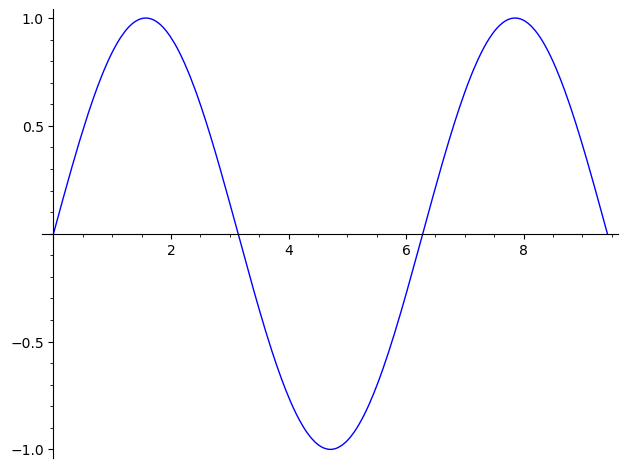
Or \(z = \cos(x^2y)\) for \(x \in [0, \pi]\), \(y \in [0, 2\pi]\):
y = var("y")
plot3d(cos(x^2 * y), (x, 0, pi), (y, 0, 2*pi))
2.20.2. Calculus#
We can do calculus. For instance, let’s compute the limit:
limit(sin(2*x)/tan(3*x), x=0)
2/3
We can do derivatives, for instance
derivative(ln(x^2)/(x + 1), x)
-log(x^2)/(x + 1)^2 + 2/((x + 1)*x)
Sage can even print it nicely:
derivative(ln(x^2)/(x+1), x)
-log(x^2)/(x + 1)^2 + 2/((x + 1)*x)
We can do indefinite integrals, for instance,
integral(ln(x)*x, x)
1/2*x^2*log(x) - 1/4*x^2
Or definite integrals, for instance:
integral(ln(x)*x, (x, 2, 10))
50*log(10) - 2*log(2) - 24
If we want the numerical approximation:
numerical_approx(_) # _ uses the last output!
89.7429602885824
When the function is not integrable in elementary terms (no easy anti-derivative) we can use numerical_integral to get numerical values for a definite integral. For instance, for
numerical_integral(exp(x^2), 1, 2)
(14.989976019600048, 1.664221651553893e-13)
This means that the integral is about \(14.989976019600048\) and the error estimated to be about \(1.664221651553893 \cdot 10^{-13}\), which means that the previous estimation is correct up to \(12\) decimal places!
2.20.3. Linear Algebra#
We can also do linear algebra:
matrix_a = matrix(
    QQ,  # entries in QQ, the rationals
    3,  # 3 by 3
    [-1, 2, 2, 2, 2, -1, 2, -1, 2]  # entries
)

matrix_a
[-1  2  2]
[ 2  2 -1]
[ 2 -1  2]
parent(matrix_a)
Full MatrixSpace of 3 by 3 dense matrices over Rational Field
We can make Sage print the matrix with “nice” math formatting with show (this only work in Jupyter Lab, not in the static book version):
show(matrix_a)
If we want the \(\LaTeX{}\) code for it:
latex(matrix_a)
\left(\begin{array}{rrr}
-1 & 2 & 2 \\
2 & 2 & -1 \\
2 & -1 & 2
\end{array}\right)
Let’s create another matrix:
matrix_b = matrix(
    QQ,  # entries in QQ, the rationals
    3,  # 3  rows
    4,  # 4 columns
    [1, 2, 3, 4, 5, 6, 7, 8, 9, 10, 11, 12]  # entries
)
matrix_b
[ 1  2  3  4]
[ 5  6  7  8]
[ 9 10 11 12]
We can compute products of matrices:
matrix_a * matrix_b
[27 30 33 36]
[ 3  6  9 12]
[15 18 21 24]
Determinants:
matrix_a.determinant()
-27
Inverses:
matrix_a^(-1)
[-1/9  2/9  2/9]
[ 2/9  2/9 -1/9]
[ 2/9 -1/9  2/9]
Characteristic polynomial:
matrix_a.characteristic_polynomial()
x^3 - 3*x^2 - 9*x + 27
Eigenvalues:
matrix_a.eigenvalues()
[-3, 3, 3]
Eigenspaces:
matrix_a.eigenspaces_left()
[(-3,
  Vector space of degree 3 and dimension 1 over Rational Field
  User basis matrix:
  [   1 -1/2 -1/2]),
 (3,
  Vector space of degree 3 and dimension 2 over Rational Field
  User basis matrix:
  [ 1  0  2]
  [ 0  1 -1])]
As we can see (if we know/remember Math 251/257), the matrix is diagonalizable:
matrix_a.is_diagonalizable()
True
Here is the diagonal form and the change of bases matrix:
matrix_a.diagonalization()
(
[-3  0  0]  [   1    1    0]
[ 0  3  0]  [-1/2    0    1]
[ 0  0  3], [-1/2    2   -1]
)
Rank and nullity:
matrix_b.rank()
2
matrix_b.nullity()
1
2.20.4. Differential Equations#
We can also solve differential equations. For instance, to solve
(where \(y=y(x)\) is a function on \(x\) and \(y'\) its derivative):
x = var("x")  # x is the variable
y = function("y")(x)  # y is a function on x
desolve(diff(y, x) + y - 1, y)  # find solution(s) y
(_C + e^x)*e^(-x)
Note that the _C is for an arbitrary constant. If we have initial conditions, say, \(y(10) = 2\), we can pass it to desolve with ics to get an exact solution:
desolve(diff(y, x) + y - 1, y, ics=[10, 2])
(e^10 + e^x)*e^(-x)
Note that it simplifies to
Here is a second order differential equation, for example:
Here is a second order differential equation:
x = var("x")
y = function("y")(x)
de = diff(y, x, 2) - y == x  # the differential equation
desolve(de, y)  # solve it!
_K2*e^(-x) + _K1*e^x - x
Here _K1 and _K2 are arbitrary constants.
The initial conditions must now be for \(y(x)\) and \(y'(x)\). If we have
then:
desolve(de, y, ics=[10, 2, 1])
-x + 7*e^(x - 10) + 5*e^(-x + 10)
Let’s double check:
f = desolve(de, y, ics=[10, 2, 1])
f(x=10), derivative(f, x)(x=10)
(2, 1)
2.21. Calling other Programs#
Sage comes with and allow you to use other programs within the notebooks. You must use “magic commands”.
Here is GP/Pari, a good program for Number Theory, which comes with Sage:
%%gp
isprime(101)
1
(Note the different syntax and output! It uses 1 for True and 0 for False.)
If you have it installed in your computer (like me), you can also call Magma, which is a very good (but expensive) Number Theory software:
%%magma
IsPrime(101)
true
You can render HTML:
%%html
We <b>can</b> use <em>HTML</em> to print text!
You can call pure Python:
%%python3
print(2/3)
0.6666666666666666
You can run a shell command. For instance, this list the files ending with .ipynb (Jupyter notebooks) in the directory I’m running Sage:
%%!
ls *.ipynb
['00-Intro.ipynb', '01-WhatIsCrypto.ipynb', '02-Python.ipynb', '03-Number_Theory.ipynb', '04-Modular_Arithmetic.ipynb', '05-Powers.ipynb', '06-DH_and_ElGamal.ipynb', '07-Computing_DL.ipynb', '08-CRT_Bezout.ipynb', '09-Improving_DL.ipynb', '10-RSA.ipynb', '11-Primality.ipynb', '12-Factorization.ipynb', '13-Square_Roots.ipynb', '14-Quad_Sieve_Index_Calc.ipynb', '15-Digital_Signatures.ipynb', '16-Elliptic_Curves.ipynb', '17-AES.ipynb', '18-Homework.ipynb']
There are also many other builtin magics.
2.5. Comments#
We can enter comments in code cells to help describe what the code is doing. Comments are text entered in Python/Sage (e.g., in code cells) that is ignored when running the code, so it is only present to provide information about the code.
Comments in Python start with
#. All text after a#and in the same line is ignored by the Python/Sage interpreter. (By convention, we usually leave two spaces between the code and#and one space after it.)As an illustration, here are some comments added to our previous restaurant code:
Note that the code above probably did not need the comments, as it was already pretty clear. Although there is such a thing as “too many comments”, it is preferable to write too many than too few comments.